
Git Worktree Explained: One Repo, Many Working Directories
A written companion to the Git Worktree Explainer video. Eight short scenes, from "what even is a worktree?" to your first command.
You're halfway through a feature when production breaks. The classic move is to stash your work, check out main, patch the bug, then try to piece your mental context back together. It works — but it's friction. Every switch costs you time, focus, and usually a clean IDE state.
Git worktrees offer a cleaner answer. Instead of shuffling a single working directory between branches, you let one repository sprout multiple working directories, each checked out to its own branch, all at the same time. This article walks through the same eight scenes as the video, so you can read at your own pace.
1. What Is a Worktree?
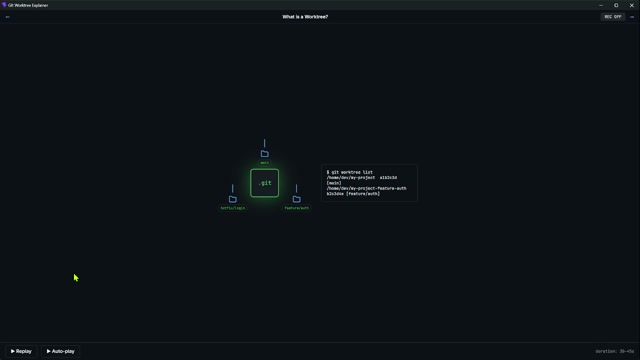
A worktree is simply a directory on disk that holds a checked-out copy of your project, tied to a specific branch. Normally you have one: your project folder, on one branch. A worktree lets you have several — each a real folder, each on its own branch — all pointing back to the same repository.
The command that reveals them is small but powerful:
git worktree list
It prints every linked folder, one line per worktree, each showing a path, a commit, and a branch. No cloning, no duplicate .git storage — just extra doors into the same house.
Picture three folders fanning out from a single .git directory: main, feature/auth, and hotfix/login. Each is a real directory with its own files checked out. And here's the key idea: each folder has its own HEAD, its own independent branch state.
One repository. Separate working trees.
That's the whole mental model. Everything else is detail.
2. How It Works Under the Hood
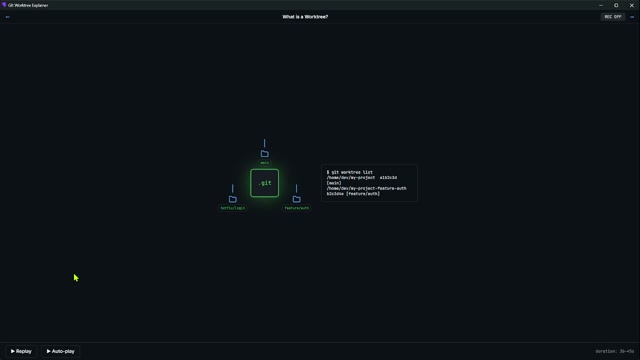
The surface simplicity hides a few clever mechanisms. Four concepts explain everything.
Main vs. linked worktree
Your original project folder is the main worktree — it owns the real .git directory (internally, the git-dir). Every additional folder you create is a linked worktree; it references the main repo through git-common-dir rather than owning its own copy.
Independent HEAD
Check out a branch inside one folder and the other folders don't flinch. Their files stay exactly where they were. This is parallel checkouts, not parallel clones — same history, separate sandboxes.
Shared object database
All worktrees read from and write to the same .git/objects store. A commit you make in one worktree is immediately visible in all the others. There are no duplicated packfiles, and it's far faster than a second full clone.
The one rule: lock files
Git enforces a single constraint — the same branch cannot be checked out in two worktrees at once. Try it and you'll hit:
fatal: branch 'feature/auth' is already checked out
That's a feature, not a bug: it prevents two working trees from silently diverging on the same branch name. The fix is trivial — use a different branch or a different worktree path.
3. Traditional Flow vs. Worktree Flow
Most of us learned the stash-and-switch dance. Let's put it next to the worktree approach.
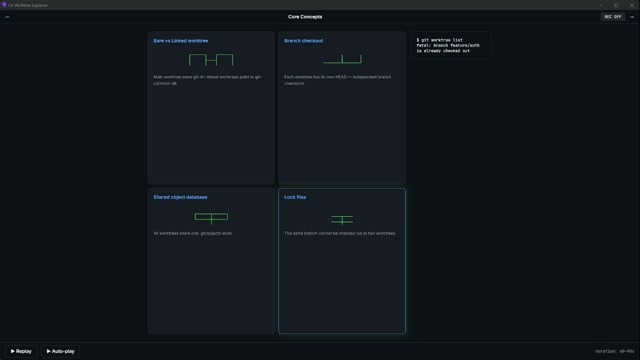
Traditional Git flow (the pain):
- You're deep in a feature branch.
- An urgent bug appears.
- You
git stashyour work-in-progress, check outmain, fix the bug, deploy. - You try to return — and now you're rebuilding context: remembering what the stash held, re-applying it (maybe with conflicts), and re-opening the files your IDE forgot about.
Every switch costs focus. That's the friction.
Worktree flow (the relief):
- Stay exactly where you are.
- Spin up a new folder already checked out to
mainorhotfix/login. - Fix and deploy from there.
- Your original feature folder is untouched — no stash, no checkout dance.
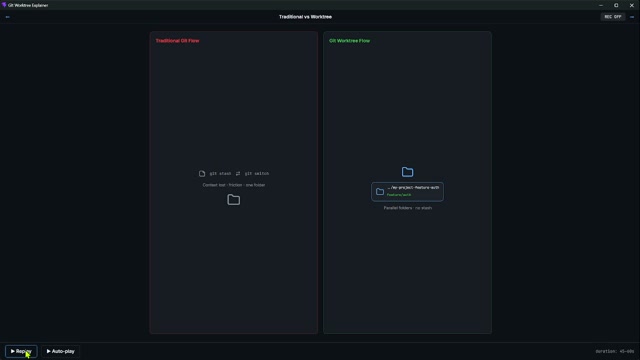
Neither approach is wrong, but for parallel tasks worktrees win decisively: one folder, serial context versus multiple folders, parallel context.
4. Anatomy of the Directory Structure
Let's open the file system and see what this actually looks like.
You have your main project folder, my-project/, with the familiar .git/ directory inside — that's where the real repository data lives.
Now create a linked worktree for a feature branch:
git worktree add ../my-project-feature-auth feature/auth
Git creates a new sibling folder, my-project-feature-auth. Here's the subtle and important part: inside that new folder there is no full .git directory. Instead there's a tiny .git file — a pointer.
gitdir: /path/to/my-project/.git/worktrees/feature-auth
That one line is the whole trick. It tells Git where the real data lives, which lets each worktree keep its own working files and HEAD state while sharing the same commit history and object database.
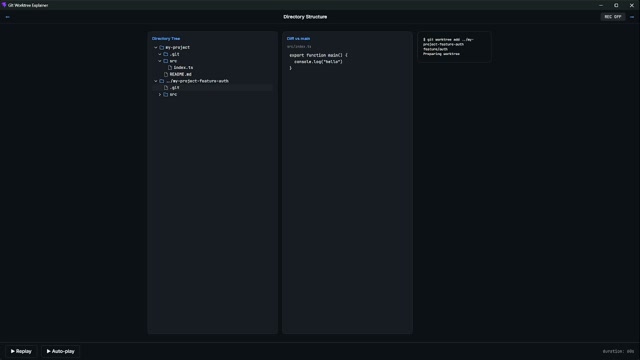
Open the linked worktree's src/ folder and you'll find auth.ts — your new feature code. Compare it to main and the difference is clear. Same repository underneath, completely independent working directories on disk. You never manage these pointers by hand; Git maintains the links for you.
5. Common Use Cases
Worktrees earn their keep the moment you need two branch contexts alive at once.
Parallel development. Two features, two branches, zero interference. Whether it's you on feature/auth and feature/billing, or two developers sharing one repo, you simply have two folders. No stash queue, no "don't touch my uncommitted changes" anxiety.
Code review. You're deep in your branch when a teammate needs a review. Instead of switching away and losing your flow, spin up a worktree on their branch. Run tests, poke the UI, leave feedback — your original work stays exactly as you left it.
Hotfix. Production breaks mid-feature. Create a hotfix worktree on main or the release branch, fix, test, deploy, then merge. When you're done, return to your feature work with zero context loss.
Continue later. Sometimes your work-in-progress is too messy to commit and too precious to stash. Park that worktree as-is and open a fresh one for the next task. Days later, the parked folder is exactly as you left it — clean IDE, clean git status.
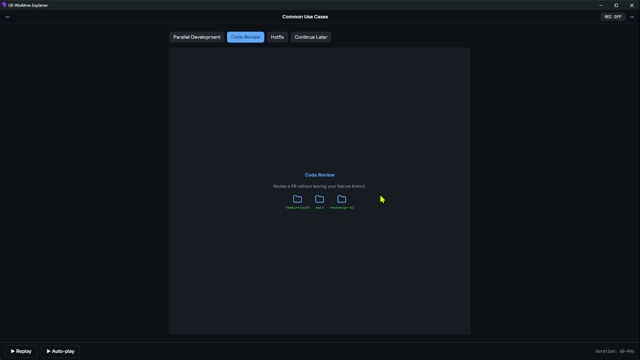
The pattern is simple: instead of constantly cleaning your current desk, just open another desk.
6. AI Agent Workflows
This pattern matters even more once AI agents enter the picture — because context is the new bottleneck.
The problem — context pollution. Drop several agents into one workspace and they compete for the same files and the same context window. Agent A refactors auth, Agent B rewrites API routes, Agent C edits UI — all at once. The shared context gets noisy: stale instructions, wrong-file assumptions, declining quality.
The solution — worktree isolation. Give each agent its own worktree. Agent A gets a dedicated directory for the auth module, Agent B works cleanly in the API package, Agent C focuses on UI. Each agent has a fresh working directory and a clean context. No cross-talk.
At scale — monorepo parallel. In a large monorepo this scales beautifully: scope each agent to a specific package via its own worktree. Everything stays in one repository, but agents operate in clean, parallel streams without stepping on each other.
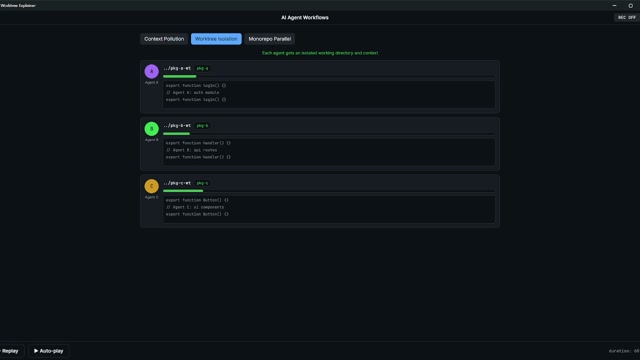
The insight: worktrees give each agent its own isolated working directory and context — like giving each person their own desk instead of crowding everyone around one table. It's not a replacement for good prompts, but it removes an entire class of shared-workspace bugs.
7. Try It Yourself: The Interactive Playground
If you'd rather poke at this than read about it, the explainer ships with a sandbox where the commands don't touch a real repository.
The layout is straightforward: a branch graph with HEAD positions on the left, a worktree panel of active directories on the right, a simulated terminal at the bottom, and a file tree for the selected worktree.
# See every worktree you have
git worktree list
# Add a new one (appears instantly in the panel + graph)
git worktree add ../my-project-hotfix hotfix/login
# Clean it up when you're done
git worktree remove ../my-project-hotfix
You can click any worktree to switch the active view and inspect its files, or use the Deploy Agent buttons to assign different agents to different worktrees. Hit Reset anytime to restore the demo state.
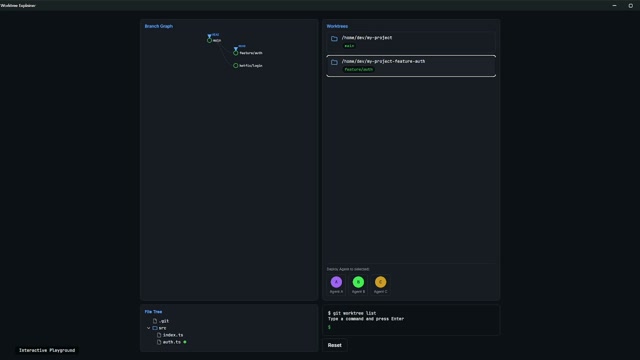
It's a safe place to build the muscle memory before you run these on a real repo.
8. Command Reference & Next Steps
Here's the full worktree toolkit in one place — six commands cover the entire lifecycle:
| Command | What it does |
|---|---|
git worktree add <path> <branch> |
Create a new linked worktree at a path, optionally on a branch |
git worktree list |
Show all worktrees with their paths, commits, and branches |
git worktree remove <path> |
Safely delete a worktree and its working files |
git worktree prune |
Clean up stale metadata from removed worktrees |
git worktree lock <path> |
Prevent accidental removal (great for long-running jobs) |
git worktree unlock <path> |
Release the lock when you're ready |
And three commands to copy right now:
git worktree add ../my-project-feature-auth feature/auth
git worktree list
git worktree remove ../my-project-feature-auth
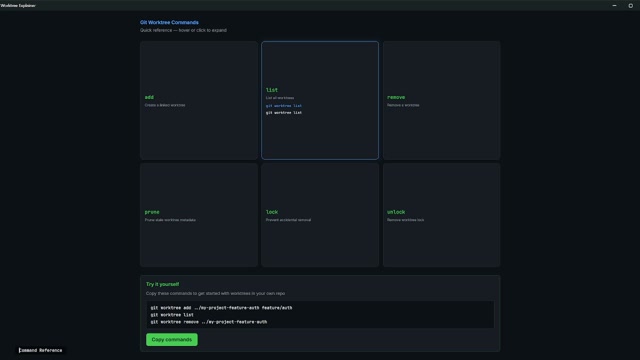
That's the whole arc: one repo → many folders → parallel work → clean agent context. You now know how to create multiple working directories from a single repository, keep your contexts clean, and work more efficiently — whether solo or with AI agents.
Go add your first worktree this week. You'll wonder how you ever lived without it.
Happy coding!
This post is the text version of the Git Worktree Explainer video. Image placeholders (images/*.jpg) will be replaced with the corresponding video frames.